


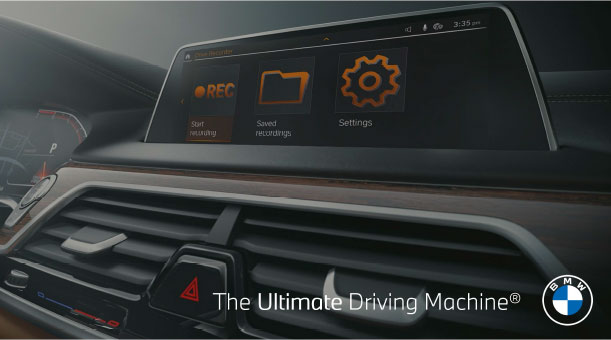
BMW DRIVE RECORDER.
While driving through a scenic route, BMW Drive Recorder captures videos hands-free using the integrated onboard cameras. Videos can record the surrounding area of the vehicle. Additionally, images can be taken automatically in the event of an accident. Each video can be recorded up to 20 seconds before and after the activation of the video storage and can be easily downloaded directly to a USB.
ACTIVATING BMW DRIVE RECORDER.
The BMW Drive Recorder must be activated before using the recording function located in the iDrive menu.
When opening the Drive Recorder for the first time, a “Legal Information” popup will appear on the screen. To use this feature, you will need to agree to the “Legal Information” that has been provided.
ACTIVATING BMW DRIVE RECORDER.
- Select the “Drive Recorder” opp located in the iDrive menu, under “Settings”.
- Next, select “Recording Allowed”, followed by the setting you would like to activate (i.e., Automatic or Manual Recording).
AUTOMATIC RECORDING.
Automatic Recordings are stored automatically when the vehicle sensors detect an occident occurrence.
RECORDING PLAYBACK.
Select the “Drive Recorder” opp located on the iDrive menu, followed by “Saved Recordings”.
Next, select the desired recording, followed by the desired setting (i.e., Play, Pause, Export, or Delete).
*You can only playback a recording when the vehicle is stationary.
ADJUSTING.
There are various setting options to choose from, such as the “Recording
Type” (i.e., Automatic and Manual Recording), “Recording Time” and “Cameras Used”.
ADJUSTING.
There are various setting options to choose from, such as the “Recording
Type” (i.e., Automatic and Manual Recording), “Recording Time” and “Cameras Used”.
RECORDING TIME.
Select the “Drive Recorder” opp located on the iDrive menu, followed by
“Settings”.
Next, select the desired setting (i.e., Before or After Trigger).
Before Trigger- recording time before on event.
After Trigger- recording time ofter on the event.
CAMERAS USED.
Select the “Drive Recorder” opp located on the iDrive menu, followed by “Settings”.
Next, press “Camero Selection”, then choose the desired camera (i.e., All, Front and Rear, Front or Rear).
CAMERA SELECTION.
• All view
• Front and rear view
• Front or rear view
![[Facebook]](https://www.passportbmw.com/blogs/846/wp-content/plugins/bookmarkify/facebook.png)
![[LinkedIn]](https://www.passportbmw.com/blogs/846/wp-content/plugins/bookmarkify/linkedin.png)
![[Twitter]](https://www.passportbmw.com/blogs/846/wp-content/plugins/bookmarkify/twitter.png)
![[Yahoo!]](https://www.passportbmw.com/blogs/846/wp-content/plugins/bookmarkify/yahoo.png)
![[Email]](https://www.passportbmw.com/blogs/846/wp-content/plugins/bookmarkify/email.png)
Connect with us


